TL;DR — Someone got root on one of my Linux servers and quietly turned it into their own VPN node and bot farm. I caught them from their own shell history, cut them off while they were still logged in, and spent the evening doing a full cleanup. This is the full post-mortem: what they did, how I found it, how I thought through each step, and what I'm changing.
0. Context
I run a small Linux server for my projects: a few websites, some self-hosted apps, and a bunch of Docker containers. It's the kind of box you set up, it works, and you stop looking at it every day.
That last part is the whole story.
On September 18, 2026, I found out someone else had been using it for weeks.
1. The Moment I Noticed
My resume page was now my website's main page, something felt off, very off, so I SSH'd in and pressed the up arrow.
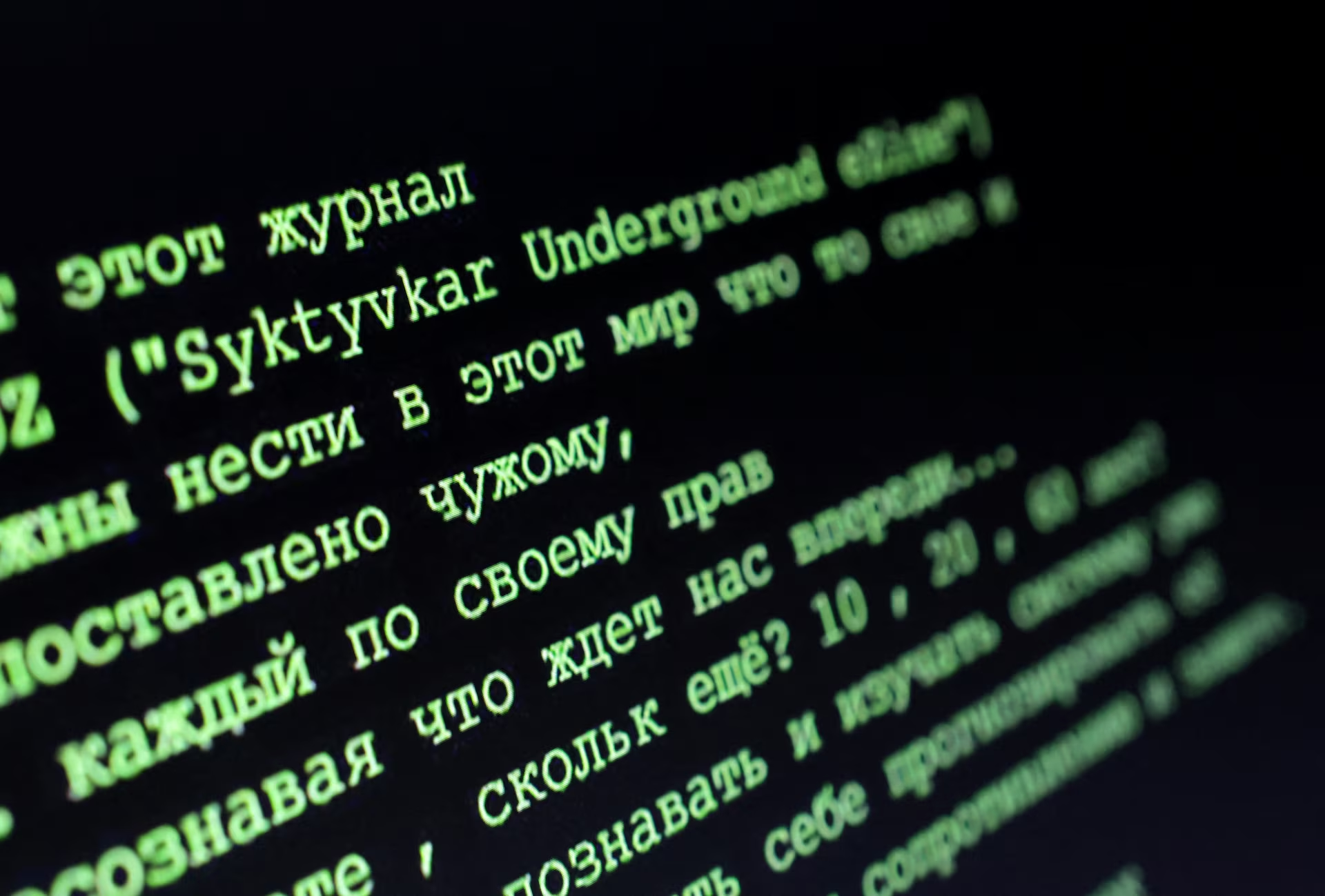
Instead of my own recent commands, I got a scroll of things I had never typed: firewall changes, Docker restarts, web server config edits, all with neat numbered comments like a tutorial, most importantly, Russian characters.
Because I had timestamps enabled for shell history, I wasn't just looking at what they ran. I was looking at when.
bash
history > ~/attacker_history.txt💡 First lesson of the day: the attacker never cleared their history. That one mistake turned a mystery into a timeline.
2. My Mental Model: The Incident Response Loop
Before touching anything, I forced myself to think in phases. This is roughly the standard incident response flow, and it kept me from panicking and deleting things randomly:
The order matters. If you "clean up" before you preserve, you destroy the evidence you need to understand what happened.
3. Contain: Are They Still Here?
The first command I ran after reading the history:
bash
whoOutput (sanitized):
text
root     ttyS0    ...
vpn      pts/0    ...  (unknown IP)
root     pts/1    ...  (my IP)
An account called vpn, which I never created, was logged in at that exact moment.
That changed my priority list instantly. Everything else could wait.
bash
pkill -KILL -u vpn                             # kill their session
usermod -L -e 1 -s /usr/sbin/nologin vpn       # lock password, expire account, no shell
Why lock instead of delete?
Locking (
-L) blocks password login.Expiring (
-e 1) blocks login even with SSH keys, because PAM checks account expiry.nologinshell means even if something slips through, there's no shell to land in.Not deleting keeps the home directory, files, and ownership intact as evidence.
Then I ran who again. Only me. 😮💨
Next I rotated credentials:
bash
passwd                                 # new root password
> /root/.ssh/authorized_keys           # after backing it up; had unknown keys
⚠️ Pro tip: before wiping
authorized_keysor changing SSH settings, keep your current session open and test a new login in a second window. Locking yourself out mid-incident is a bad time.
4. Preserve: Save Before You Clean
I made one folder and copied everything suspicious into it before removing anything:
bash
mkdir -p /root/incident
cp <their config files> /root/incident/
docker inspect <their container> > /root/incident/container.json
tar czf /root/incident/<tool>.tgz <their tool directory>
Every cleanup step after this started with "copy it to /root/incident first."
5. Investigate: Building the Timeline
This was the fun (and scary) part. I treated it like a puzzle: every file and log is a clue with a timestamp.
5.1 Login records
bash
last -n 20The vpn account had logged in over and over, from IPs in many different countries. That's the classic sign of someone hopping through proxies or VPNs to hide where they really are.
5.2 How much power did they have?
bash
groups vpn
grep -r vpn /etc/sudoers /etc/sudoers.d
Result: a file in /etc/sudoers.d/ giving the account full root with no password (NOPASSWD: ALL).
5.3 When did it start?
This was the biggest clue of the day:
bash
stat /etc/sudoers.d/vpnModern filesystems record a Birth time. That file was born in mid-August, weeks before any of the logins I'd seen. So someone had root back then, created a backdoor account, and waited.
🧠 Takeaway:
statbirth times are an underrated forensics tool.ls -lonly shows modification time.
5.4 Hunting for persistence
If I were an attacker with root, where would I hide things so they survive a reboot? I checked all of them:
bash
crontab -l; ls -la /etc/cron.d               # scheduled jobs
ls -lt /etc/systemd/system | head            # services, newest first
tail -n 25 /root/.bashrc                     # shell startup files
grep -vE 'nologin|false' /etc/passwd         # accounts that can log in
And then the big sweep: every file changed since the break-in date.
bash
find /etc /opt /root /home /usr/local/bin -newermt "YYYY-MM-DD" -type f 2>/dev/nullsystemd was where it got interesting. Sorted by date, two services I'd never seen were sitting right at the top.
5.5 What they were actually doing
Putting it all together, the attacker had set up:
A VPN/proxy node running in Docker, grabbing port 443 so it could blend in with normal HTTPS traffic.
A headless-browser bot tool running as a
systemdservice, with its own firewall rules so only their server could talk to it.Kernel network tuning (
sysctl) optimized for long-distance VPN traffic.Extra tooling (a Python package manager and its cache) to run it all.
The detail that impressed me the most: their tuning file had a comment explaining that memory limits were set so the WordPress site wouldn't crash. They were actively trying to stay invisible. If my sites kept working, I'd never look.
5.6 Final timeline
6. Eradicate: Pulling Out Every Root
With evidence saved, I removed everything, one layer at a time.
bash
# 1. Their sudo rights
mv /etc/sudoers.d/vpn /root/incident/

# 2. The VPN container
cd <their compose dir> && docker compose down

# 3. The bot service
systemctl disable --now <their services>
rm /etc/systemd/system/<their services>
systemctl daemon-reload

# 4. The firewall rules that service had added
iptables -D INPUT <their rules>

# 5. Their kernel tuning, VPN interfaces, and tools
mv /etc/sysctl.d/<their file> /root/incident/
ip link delete <their interfaces>
rm -rf <their tool caches>
🔍 Gotcha: disabling a service does not undo what it already did. The bot's firewall script had inserted
iptablesrules at boot, and those stayed active until I removed them by hand.
7. Recover: Undoing Their "Fixes"
The attacker had changed my setup to make room for their VPN. Recovery meant reversing each change:
Moved my websites back to port 443 (they'd shifted them to another port).
Turned the web server's auto-restart back on (they'd disabled it).
Turned IPv6 back on (they'd disabled it in the kernel and made it permanent).
Re-enabled my control panel service (they'd disabled it from starting on boot).
Removed a firewall rule they'd opened for their node.
Then a reboot, and a check that everything came back up on its own.
8. Harden: What I Changed
Within an hour of locking them out, the logs showed hundreds of password-guessing attempts hitting SSH, including someone trying the old vpn account again. Nice try.
bash
fail2ban-client status sshdtext
Currently banned: 4What's in place now:
✅ fail2ban banning brute-force IPs automatically
✅ All credentials rotated, unknown SSH keys removed
✅ ClamAV installed and a scan of the usual hiding spots
✅ Scheduled tasks audited, including the panel's own task list (panel tasks don't always show up in
crontab -l!)
What's next:
🔜 SSH key-only login, passwords off
🔜 Less exposed to the internet: only what truly needs to be public
🔜 A fresh server install. Once root has been compromised, you can never be 100% sure you found everything. The only real fix is a clean rebuild with data migrated over.
9. Lessons Learned
Run
whoandlastonce in a while. Two seconds, could save you weeks.Turn on history timestamps with
HISTTIMEFORMAT. They turned this investigation from guessing into reading.Know your persistence spots:
/etc/sudoers.d/,/etc/systemd/system/, cron, shell rc files, and your control panel's task list.Use
statbirth times to date when something was created."Nothing is broken" is not the same as "nothing is wrong." This attacker deliberately kept my sites running so I wouldn't notice.
Preserve, then clean. Every time.
Stay calm and work in phases. I'm not going to pretend I wasn't panicking at first. But having a checklist (contain → preserve → investigate → eradicate → recover → harden) made it manageable.
10. Final Thoughts
It's a weird feeling knowing someone was living on your machine for weeks. But it's also one of the best learning experiences I've had. Every command in this post is something I actually ran while it was happening.
If you run your own server: go type who right now. I'll wait. 👀
11. Current Status
As some of you may already know, I have received personal threats related to this incident. Because of this, the website will be changed for an indefinite period of time, until I am sure that everything has been fully resolved.
For now, the résumé feature is disabled until further notice.
Thank you for your patience and understanding.
— Thomas